Introduction to GEE
Background
So far in this course, we have covered the use of python in handling geodata. Specifically, we have learned how to manage (large) raster and vector data and we got in contact with a large variety of tools and techniques. What all these had in common, was that usually you were provided with some kind of data, prepared by us. In addition, so far there was always enough computing power and disc space available for you. However, in your own research or in work you do outside of the university you will likely face the issue that you want to work with large data, but (a) won’t have the infrastructure to process them, and (b) may face restrictions because you want to access data as a private person. This is, why we want to expose you during the next few weeks to Google Earth Engine (GEE) as a huge data and processing engine, that you can use for your own work. GEE is around since ~2012 and it received a lot of attention with the publication by Hansen et al. (2013) in Science. Since then, the number of studies using GEE has exploded and the data catalogue seems to be growing day after day.
There are a lot of different tutorials and packages that help you doing some sort of analysis. Many of them use the language JavaScript , which GEE was initially prepared for, but increasingly you find tutorials and tools that use Python as an API. What these tools and tutorials all have in common is that they help you running some analysis in GEE and visualize the results. This can include time series analyses, image classifications, or simply the visualization of datasets (which there are a lot in GEE). They are designed to visualize the results directly in the browser, and, as we will learn, compute the results on-the-fly when zooming in/out or moving to a different place on the Earth. This is all pretty fantastic, and - as already said - there are a lot of tutorials out there, many of which we will provide links to. Though, GEE also has a number of limitations, such as a limited amount of algorithms implemented that can be applied. While for example in case of “simple” classifications this is not too big of a problem, in our daily research we often want to do more, for example designing new methods and tools that use image classifications or regressions as input. In the majority of these cases, GEE does not have the capabilities to flexibly implement and test new analysis methods. Thus, at some point in our analysis we need to export large amounts of pre-processed data from GEE to our own drives and work on them further. Here is, where it becomes tricky as GEE has mechnisms in its architecture that prevents exports of large data at once.
This part of the course therefore will not provide yet another tutorial of doing image classifications in GEE, but we want to continue with the general research line of large-scale processing. Specifically, we want to teach you in these sessions on how to use GEE as a large pre-processing-engine from which you export intermediate results to your own computer. Focussing on this part, will in our eyes nicely complement existing tutorials, which we will provide links to.
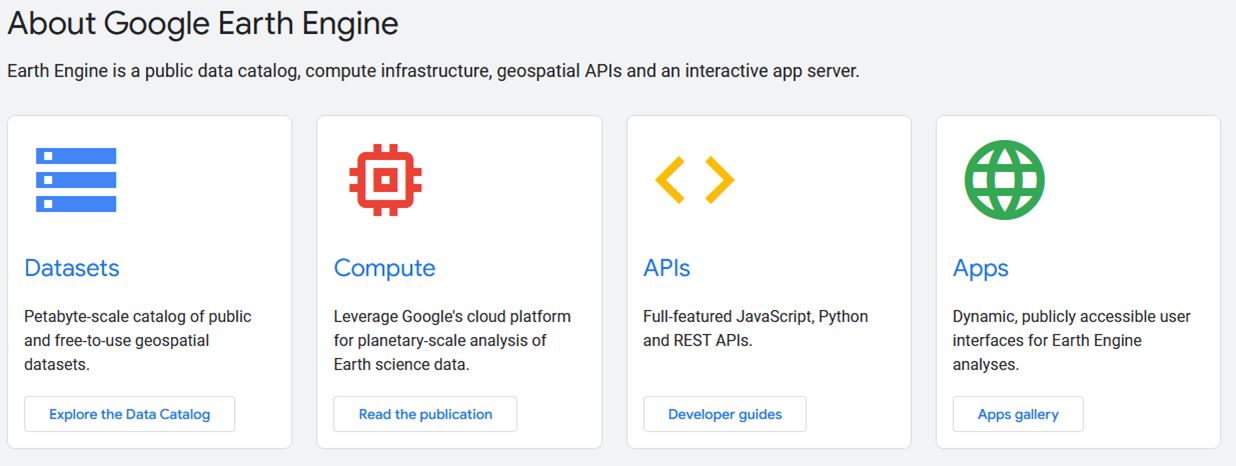
Figure 1:Overview about the different components, that GEE offers. The figure is derived from the GEE-website).
We will focus on the first two elements (from the left) and we will use python as our API. In short, what GEE provides to us, is:
An extensive archive of data, including many complete satellite image archives (e.g., Landsat, Sentinel-1/2, MODIS, Planet-NICFI mosaics) as well as land-cover products (e.g., global forest watch, ESA World-Cover) both at the global and national (primarily United States) scale.
Simple (e.g., linear regression, random forests) & more advanced processing algorithms, particularly in the satellite image domain (e.g., LandTrendr, CCDC)
Nearly unlimited computing power
On the opposite, what it does not provide to us:
advanced processing solutions, particularly with respect to remote sensing data processing (e.g., FORCE); but also a higher diversity of classification and rgression algorithm (e.g., gradient boosting regression)
Although GEE provides some detail on how it handles data and applies algorithms, for many instances it remains a “black box”.
Nice cartography (although this is getting better)
DIY-parallelization (“The price of liberation from these details is that the user is unable to influence them.” (Gorelick, et al. 2017))
Easy extrapolation across large geographic spaces and export/download of these processing results
Having these elements in mind, what we want to do in this course, is:
to advertise GEE as a great source to do large area processing (but not necessarily only)
Show its power, but also its limitations and develop ways to work around this
Motivate you to use the best of the two worlds: (1) Data archives and processing power in GEE, (2) Advanced functionality of local python processing and use of gdal and osr
There are many important aspects with regards to GEE that you will probably learn if you keep using it. Though, one fundamental principle is important for our understanding: the distinction between server- and client-side operations. In general, we have a client side library that will be translated into complex geospatial analyses into EE requests:
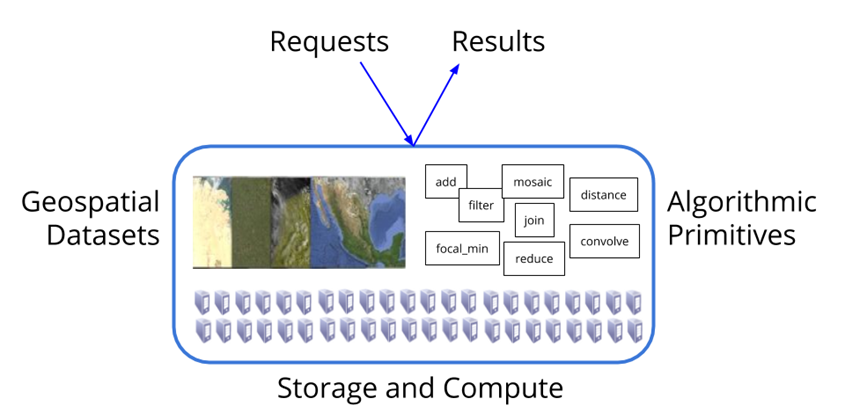
Figure 2:Schematic representation about the differentiation between server-side and client-side operations (Source: https://geohackweek.github.io/GoogleEarthEngine/).
This is an important aspect, as we will have to always think about what a certain operation is done locally on your computer, and what operation we want GEE to do. In other words, on the client-side (i.e., our computers) we create and manipulate “proxy objects”, which do not contain any data, but are just handles for objects on the server-side. This is really important to consider, because it means that, compared to the processes we have been thinking so far, we hardly can create/modify variables step-by-step.
Client library
The client library lets you run processing tasks on the Google servers. The library can be accessed via a JavaScript and Python API (Application Interface). To better understand the API, check out the documentation. Below is a list of some examples.
Client Libraries:
ee.Algorithms
ee.Array
ee.Blob
ee.Classifier
ee.Image
ee.ImageCollection
ee.Reducer
Some libraries such as ee.Algorithms and ee.Reducer contain functions that are applied to other EE objects. They work like a collection of tools. You can access them as follows:
ee.Algorithms.HillShadow(image, azimuth, zenith, neighborhoodSize, hysteresis)
Other libraries correspond to EE data types that have their own functions (methods), e.g., ee.Dictionary, ee.Image.
Data types
There are many good GEE tutorials online, including this one. We do not want to re-invent those tutorials and possibly create a terrible new version of it. Instead, we want to focus on doing these types of analyses and extract the data to our own drive - both for individual locations but also across large geographic extents. Here, we briefly introduce the basic elements of geographic features that we will work with in the context of the course. For a more complete overview of Earth Engine’s data types see here. When we introduce the data types, we will also use some visualization tools, specifically from the geemap library. This package has become quite popular in the last years. The author/developer is Quisheng Wu, a professor at the University of Tenessee. Originally being a thematic expert in Wetland mapping, he has become an important developer for GEE using python. The strength of his tool is that it brings together the functionality of QGIS in a ipynb. Many tools and tricks for visualization are available through his package, and we really recommend checking it out. For example, the package allows to download TimeLapse videos (see some examples for what a TimeLaps is here) and also some image composites and image classifications. The package also builds on different visualization backends, all of which have a different functionality. You can find out more about this here. The weakness of the tool/library is that it is not perfect if we want to extract large amounts of data from GEE or do complex operations as the package of course also faces memory and computation restrictions from the side of GEE. So, for our course, it is mostly suitable for visualizing data. The rest - as you have learned during the past weeks of the course - will have to be implemented manually.
We start by importing the package and by authenticating our computer with google. This basically creates a connection between you and your computer and stores the connection details in something similar to a cookie. This is done by the code line ee.Authenticate() and has only be execute once. What you need to do, however, every time you start working is to instantiate a GEE session via ee.Initialize(). Below is a good code chunk that you can possibly use as a standard chunk inside your scripts.
import ee
import geemap.foliumap as geemap
try:
    ee.Initialize()
except Exception as e:
    ee.Authenticate()
ee.Initialize()Vector data
Contrary to the previous parts of this book, we will start with introducing vector data, primarily because we will use them to make some spatial selections later on with raster data. In GEE vector data are considered as features. A feature consists of a Geometry and a dictionary of properties (comparable to attributes). Below you find an example for how to build geometries and correspoinding features:
point_geom = ee.Geometry.Point([-60, -20])
rectangle_geom = ee.Geometry.Rectangle([-60, -20, -62, -22])
polygon_geom = ee.Geometry.Polygon([[[-60, -20], [-62, -20], [-62, -22], [-60, -22], [-60, -20]]])point_feat = ee.Feature(point_geom, {'ID': 1})
rectangle_feat = ee.Feature(rectangle_geom, {'ID': 2})
polygon_feat = ee.Feature(polygon_geom, {'ID': 3})Many features combined result in a ee.FeatureCollection(), which corresponds to what we have got to know as a layer in general vector data. An ee.FeatureCollection() is build through a list of features. While it is in principle possible to combined different types of features/geometries (e.g., points and polygons), we generally recommend to keep these separate for data sanity. Keep in mind, that these are only container objects, which are only created server-side. How we retrieve these objects, we show in the next chapter.
# Build a second point feature
point_geom_2 = ee.Geometry.Point([-61, -21])
point_feat_2 = ee.Feature(point_geom_2, {'ID': 2})
# Create a feature collection from the point features
fc = ee.FeatureCollection([point_feat, point_feat_2])
fcBesides manually created feature collections, there are many different datasets stored in GEE. What we have learned in our section on vector selections is that vector data can be either selected by location or by attribute. In GEE we do this trough applying a filter to a ee.FeatureCollection(), which corresponds to the .SetAttributeFilter() method we learned before. Below you find an example, that loads the FAO country borders from GEE (i.e., an ee.FeatureCollection())`, and then selects the country Germany. We then use geemap to visualize the feature on a map.
fao = ee.FeatureCollection("FAO/GAUL/2015/level0")
ger = fao.filter(ee.Filter.eq('ADM0_NAME', 'Germany')) # Filter by country nameA visualization always uses these steps: (1) Instantiate a map object, (2) add desired layers, (3) call the map object. Important: only when the map object is called, there will be any calculation started on the server-side! In the code below you will notice the empty {}. These need to be defined for the vis_params which are the general visualization parameters for an individual feature. Since we are defining it here via the style for the entire feature collection, we need to leave it empty. To showcase the difference, I will also visualize the polygon from above (two important things here: (1) with folium one can only visualize ee.FeatureCollections() but not ee.Features or ee.Geometries, so I will have to convert polygon_feat into a feature collection before visualizing it, (2) the polygon is located in South America, so you will have to pan to South America in order to see it).
map01 = geemap.Map()
map01.centerObject(ger, 6) # this makes sure that we are centered on the feature collection
style = {"color": "0000ffff", "width": 2, "lineType": "solid", "fillColor": "FF000080"} # Define the style for the feature collection
map01.addLayer(ger.style(**style), {}, 'Germany')
map01.addLayer(ee.FeatureCollection([polygon_feat]), {"color": "red"}, 'Polygon in South America') # Conver the feature into a feature collection first
map01Raster Data
The other prominent data type in GEE (and in our course) are raster data. Similar to what we have already known from our course. In GEE, and image is defined as ee.Image() and consists of bands and a dictionary of properties. There is a huge database of image data, that is growing at a daily basis, containing both satellite data (e.g., Sentinel, Landsat), but also entire dataproducts. Check out the Google Earth Engine Data Catalog and the website Awesome GEE datasets for the wide section of datasets. Have these sources also in mind when you work on your final class project.
Similar to vector data, multiple raster images can be combined inside so-called ee.ImageCollections(), to which we can apply filters etc. Below you find some examples. First, I will load some individual images from the data catalogues referenced above, and visualize them (you will see that setting the visualization parameters is a bit non-intuitive). Second, I will load an ee.ImageCollection() and apply some filters to it. In both cases, we will use the polygon_geom from above:
# Load some images. all of them are clipped to the polygon_geom
tc = ee.Image("UMD/hansen/global_forest_change_2023_v1_11").select(['treecover2000']).clip(polygon_geom)
lossYR = ee.Image("UMD/hansen/global_forest_change_2023_v1_11").select(['lossyear']).clip(polygon_geom)
esaWC21 = ee.ImageCollection("ESA/WorldCover/v200").select(['Map']).toBands().clip(polygon_geom)
tri = ee.ImageCollection("projects/sat-io/open-datasets/Geomorpho90m/tri").median().clip(polygon_geom) # terrain ruggedness. Check out awesone GEE datasets for examples on how to load the data# Instantiate the map and set the center, we also add a satellite basemap underneath
map02 = geemap.Map()
map02.centerObject(ee.FeatureCollection([polygon_feat]), 6)
map02.add_basemap('SATELLITE')
# Load the layers
map02.addLayer(tc, {'palette': ['000000', '00FF00'], 'min': 0, 'max': 100}, 'Tree cover 2000')
map02.addLayer(lossYR, {'palette': ['FF0000', '000000'], 'min': 0, 'max': 23}, 'Loss year')
#map02.addLayer(esaWC21, {'min': 10,'max': 100, 'palette': ['006400','ffbb22','ffff4c','f096ff','fa0000','b4b4b4','f0f0f0','0064c8','0096a0','00cf75','fae6a0']}, 'ESA World Cover 21') # colors were taken from the website
map02.addLayer(tri, {'min': 0, 'max': 1, 'palette': ['000000', 'FFFFFF']}, 'Terrain ruggedness')
# Call the map object
map02Now, after having looked at individual images, we now want to shift our focus to collections of images. In our own research, the most common image collections are satellite archives. Thereby, a collection of e.g., Landsat images contains all images of a particular sensor (e.g., OLI and OLI2 on board of Landsat 8 & 9) globally that have ever been taken. Currently, ~580,000 images are taken each year - quite a substantial collection. Obviously before we start working with these, we need to apply some spatial and temporal filters. Below you find some examples for such filters. We take the collections of Landsat 8 and 9 over our polygon_geom in South America:
l8 = ee.ImageCollection("LANDSAT/LC08/C02/T1_L2").filterBounds(polygon_geom)\
.filter(ee.Filter.date(ee.Date.fromYMD(2024, 1, 1), ee.Date.fromYMD(2024, 12, 31))) # here we filter by the date taking all images acquired during 2024

l9 = ee.ImageCollection("LANDSAT/LC09/C02/T1_L2").filterBounds(polygon_geom)\
.filter(ee.Filter.date(ee.Date.fromYMD(2024, 1, 1), ee.Date.fromYMD(2024, 12, 31))) # here we filter by the date taking all images acquired during 2024

all_images = l8.merge(l9) # merge the two collections
all_images.size()During 2024, 183 images were taken over our small area in South America; representing a solid database to work with. We can now filter further, by allowing only a certain cloud coverage, let’s say a maximum of 20%. This information is stored in the attribute CLOUD_COVER (see here):
all_images_lt20 = all_images.filter(ee.Filter.lte('CLOUD_COVER', 20))
all_images_lt20.size()Already a lot less, but still a lot of data to work with. In subsequent sessions we will show you how to make use of the data, such as removing clouds, calculating spectral-temporal metrics, etc. For now, we leave it at this!
Other data types
Similar to what we have introduced in our introduction to python, there are other important data types in GEE, which we name here briefly:
| Data Type | Example |
|---|---|
| Dictionaries | ee.Dictionary({'e': np.e, 'pi': np.pi}) |
| Lists | ee.List([1, 2, 3, 4, 5]) |
| Dates | ee.Date('2022-12-06') or ee.Date.fromYMD(2017, 1, 13) |
| Numbers | ee.Number(1) or ee.Number(np.pi) |
| Strings | ee.String("We love geopy") |
And that is it. Pretty cool! Although we haven’t done any analysis, I hope that this shows to you already how powerful GEE can be simply for visualizations and some simple selections. What years ago meant (a) downloading a bunch of files, (b) loading them into QGIS, can now be done in just a few seconds. In addition, using the tools in the window, we can now also do some simple digitizations, etc. Check out the different datasets yourself to see the richness of the available data. Try to build yourself a quick script that will allow you to quickly examine any region of the world in just a few seconds - a script that you are able to call whenever you want.